
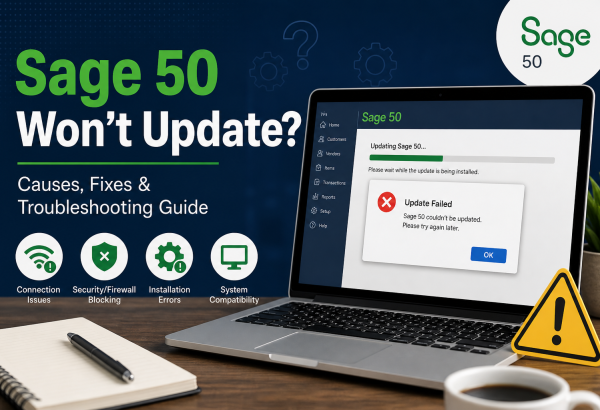
When Sage 50 won’t update, it can create serious disruptions for businesses that rely on the software for accounting, payroll, invoicing, and financial reporting. Missing an update may also prevent access to important security patches, performance enhancements, and compliance changes. If your Sage 50 update keeps failing, freezing, or showing error messages, the issue is usually tied to permissions, connectivity, damaged files, or system compatibility.
One of the most common reasons Sage 50 will not update is lack of administrator rights. Software updates often need elevated permissions to install new files, change system settings, and update shared components. If you are using a standard Windows account, the update may stop midway or fail completely. Running the Sage 50 installer as an administrator is often the quickest fix.
Another frequent cause is antivirus or firewall blocking the update process. Security software may mistakenly flag Sage update files or block connections required to download patches. This is especially common in office networks with strict security settings. Temporarily disabling antivirus software or adding Sage 50 as a trusted application may allow the update to complete. If your business uses managed IT services, network policies may need to be adjusted.
Internet connection problems can also prevent Sage 50 updates from downloading correctly. An unstable or slow connection may interrupt the update package, causing incomplete files or timeout errors. Restarting your modem or router, switching to a more stable network, or using a wired connection can improve success rates. It is also helpful to run updates outside peak business hours.
Sometimes the issue is caused by corrupted program files or failed previous installations. If a prior update was interrupted, Sage 50 may have damaged components that block future updates. In this case, use the Windows repair option through Programs and Features. If that does not work, reinstalling Sage 50 while keeping your company data intact may solve the problem.
Your system may also fail to update if it does not meet the latest Sage 50 system requirements. Outdated Windows versions, missing Microsoft .NET Framework components, low disk space, or unsupported hardware can all stop the installation process. Before updating, make sure Windows is fully patched and there is enough free storage available.
For businesses using multi-user mode, shared company data and server access can create update issues. If files are stored on a server, Sage 50 may need proper permissions to access the data path. Ensure all users are logged out of the software during the update. Also verify that the server hosting the company file is online and accessible.
If Sage 50 still won’t update, check the exact error code or message displayed during installation. Specific codes often point directly to licensing issues, database problems, or missing dependencies. Recording these messages can help speed up troubleshooting.
Before attempting any major fix, always create a full backup of your company data. This protects your records in case the update process causes corruption or requires reinstallation.
If internal troubleshooting does not resolve the problem, contacting Sage support or a certified Sage consultant may be the best option. Professional assistance can help diagnose logs, repair installations, and restore update functionality quickly.
Keeping Sage 50 fully updated is essential for stability, security, and compliance. Addressing update failures promptly helps ensure your accounting system continues running efficiently without unnecessary downtime.