Microsoft Outlook is a very popular productivity tool that integrates email, tasks, calendars, and contacts into a single platform.
One of its most used key features is the Calendar, where you can manage the appointments, the meetings, and the events in an effective and efficient manner.
Sometimes, when people need a printed copy of their calendar, they may want to leave out the extra information, like long descriptions and notes.
If you are wondering how to print Outlook Calendar without notes, this article may be helpful to you.
We will tell you everything through simple and understandable steps about how to print Outlook Calendar without notes.
Why Do People Want to Print Outlook Calendar Without Notes?
Before we get into the discussion of how to print Outlook Calendar Notes, let’s learn some reasons why to print Outlook Calendar to PDF without notes.
- Saving the Space: More events can be fit by people on the page when the notes are left out.
- Privacy: Notes can include personal, private, or confidential information.
- Clarity: A calendar without notes is easier to read and looks clearer and cleaner.
- Professional Looks: It is more suitable for sharing in the meetings.
How To Print Outlook Calendar Without Notes Manually?
Method 1: Use Outlook’s Built-In Print Styles
Outlook has a few different printing styles, in which some of them don’t include notes by default. The best ones people can use are
- Monthly Style
- Weekly Agenda Style
- List Style
Steps to Print Outlook Calendar to PDF Without Notes
- Open Outlook and move to the Calendar.
- Select the time range you want to print. (For example, this month or this week)
- At the top-left, click on File and click on Print.
- Choose one of these under settings: monthly agenda style, weekly agenda style, or list style.
- Click on the Print Preview for checking if notes are gone.
- Whenever you are ready, click on the Print.
Method 2: Customize the Print Style
If you want control over what is printed, you can try changing the print settings.
Steps of How You Can Customize the Print Styles
- Go to the Calendar and click File > Print.
- Choose a printing style (like a weekly agenda style, monthly agenda style, or list style.)
- Go and click on the Print Options.
- Go in the new box and click on the Page Setup.
- Go to the Format tab and look for anything that says “Details” and “Notes” and uncheck it.
This allows you to remove just the part that you don’t want, without changing the rest of the things.
Method 3: Use the Simple Table Format or the List Style
The list style will show all the calendar events in a table like an Excel sheet.
It shows:
- Subject (what the event is about)
- Starting time and ending time
- Location
It does not show descriptions or notes.
Steps About How To Use The List Files:
- Open the calendar and go to File > Print.
- Select the List Style and go and check the Print Preview to confirm that there are no notes left.
- Then click on Print.
It works great for the quick schedules and overviews.
Method 4: Export The Calendar To Another App
If in Outlook, print styles are not what you want, you can export the calendar and format it in another program like Microsoft Word or Excel.
Steps about How to Export the Calendar to Another App:
- In Outlook, click File > Save Calendars.
- Save it in the Calendar Format as an (.ics) file.
- Open Excel or Word and use a table or a calendar template and copy all the details from Outlook.
- Only include those parts that you want (like subject and time).
- At last, print from there.
It usually takes more time but also gives you the access of full control over what is printed.
Method 5: You Can Manually Create a Calendar Without Notes
If you are having only a few events, you can learn to make a simple and easy version of your calendar without any notes.
Here are the following steps for how you can manually create a calendar without notes:
- Go and look at the events in the Outlook.
- For every event, write down only the title, time, and location and skip the notes.
- Start creating a new calendar or use a Word document.
- Only add the important parts and print this new version.
It works better for a few meetings or for short weeks.
Helpful Tips on How to Print Outlook Calendar to PDF
- Use Titles With Short Length: Keep the names of the event short so they can fit better.
- Do Color-Code Your Calendar: This helps group events by type or person.
- You Should Use Landscape Mode: Gives more space from left to right.
- Print to PDF First: This allows you to check it before using the paper.
How to Print Outlook Calendar Without Notes Using a Professional Tool?
The best way to print Outlook calendar to PDF is to use a professional tool like BitRecover PST Converter.
Here are the following features of BitRecover PST Converter:
- BitRecover allows PST file conversion with mail, contact, calendar, journal, etc.
- PST Converter Tools allows you to batch convert PST files at once.
- It converts PST files into the 39 most popular formats and email clients directly.
- It offers 10+ unique file naming choices to arrange the converted documents and emails.
- It automatically adds the Outlook PST files in the software GUI from the default location.
Steps Of How To Print Outlook Calendar Without Notes Using BitRecover PST Converter:
- Start the software and click on the Next button.
- Select the Outlook files and folders.
- Select the Calendars folder.
- Select PDF as the export option to print Outlook calendar to PDF.
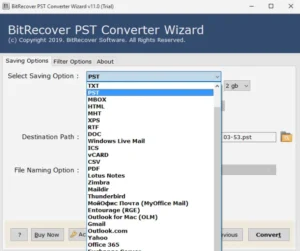
- Click on the Next button, and the conversion is completed.
Things To Avoid
Here are some mistakes that people make while printing their calendars:
- Not Checking The Preview: Before printing, always use the Print Preview to ensure that the layout is correct.
- Overcrowding: Too many events every day can lead to unreadable printouts. People should consider breaking it down or using a week view.
- Choosing The Details Style Of Calendar: This always includes notes. Avoid this until and unless you need full details.
Conclusion
Here, we have not only learned how to print Outlook Calendar without notes, but we have also learned to print Outlook Calendar to PDF manually and professionally, features of professional tools and its steps of converting. By excluding notes, people get a cleaner, clearer, more focused calendar with enhanced readability and privacy.